Anti-Aliasing
Also called AA, edge smoothing
Anti-aliasing is a rendering setting that smooths the jagged staircase effect along edges in a digital image. It works by sampling each pixel several times and blending the results, so a diagonal edge fades cleanly instead of stepping.
Why edges go jagged
An image is a grid of square pixels, and a curved or diagonal edge cannot line up with a square grid. Each pixel has to be either in or out, so the edge comes out as a staircase. That stepping is called aliasing.
Anti-aliasing splits the difference. Instead of one sample per pixel, the renderer takes many across the pixel area and averages them, so a pixel straddling an edge lands partway between the two colours.
Where it bites in jewelry renders
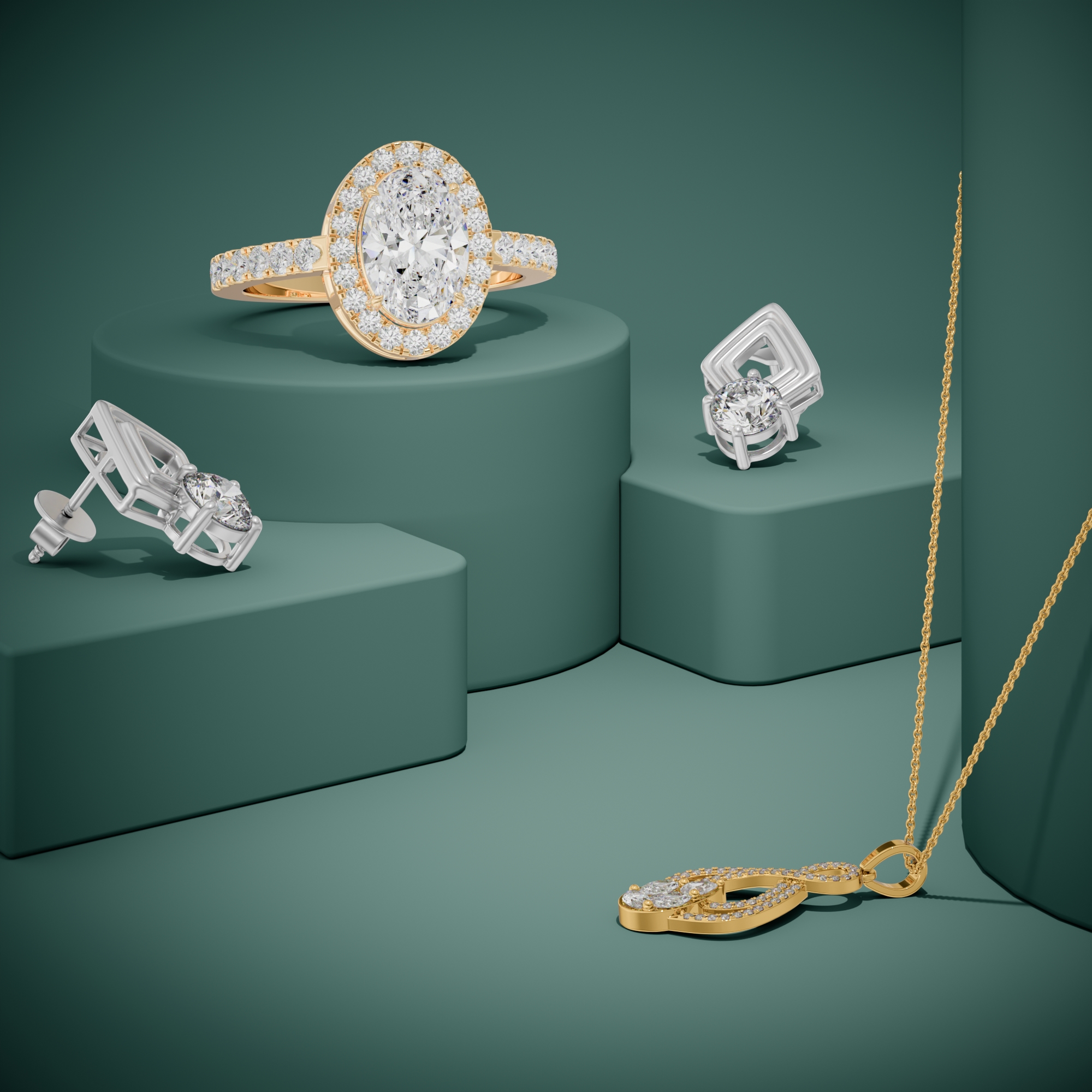
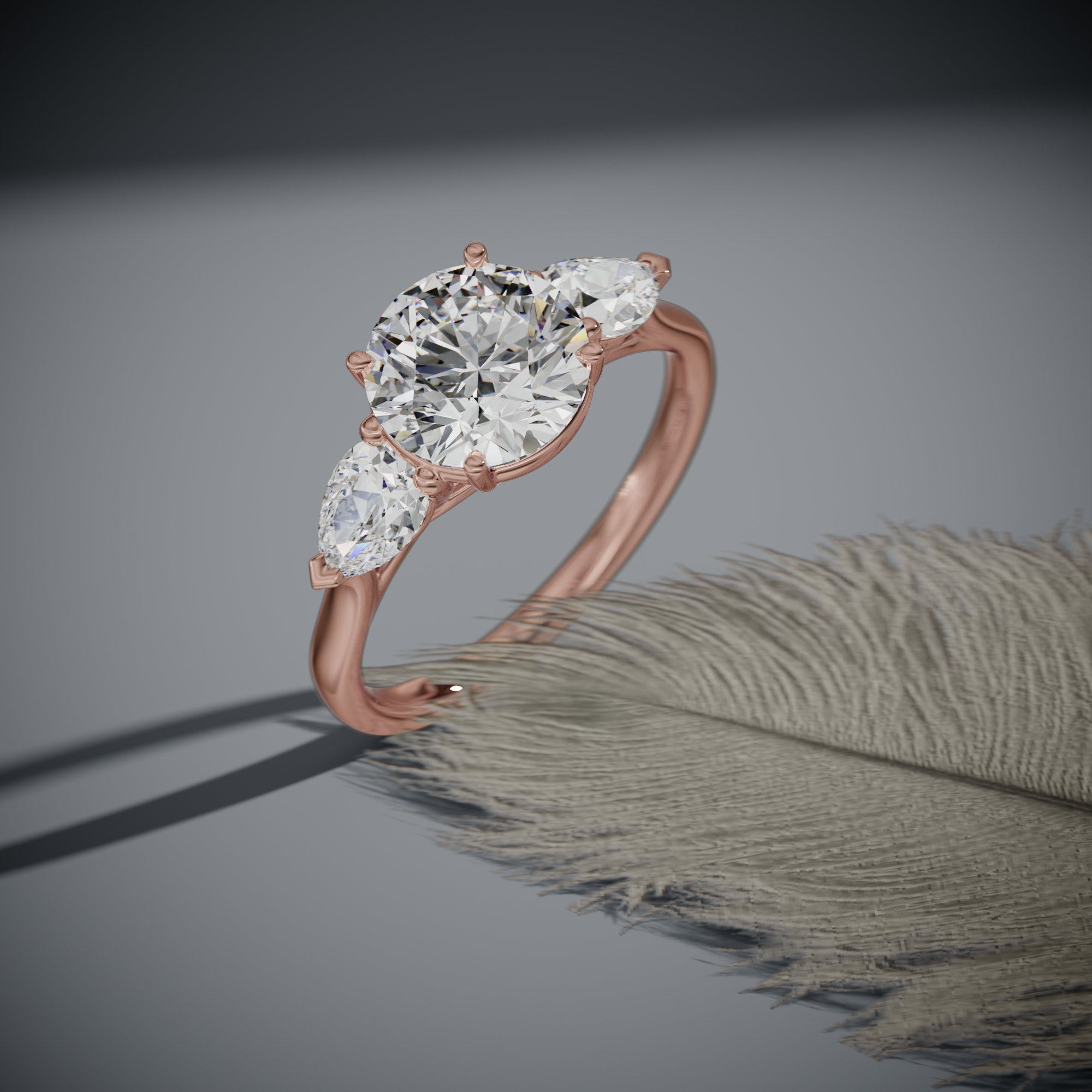
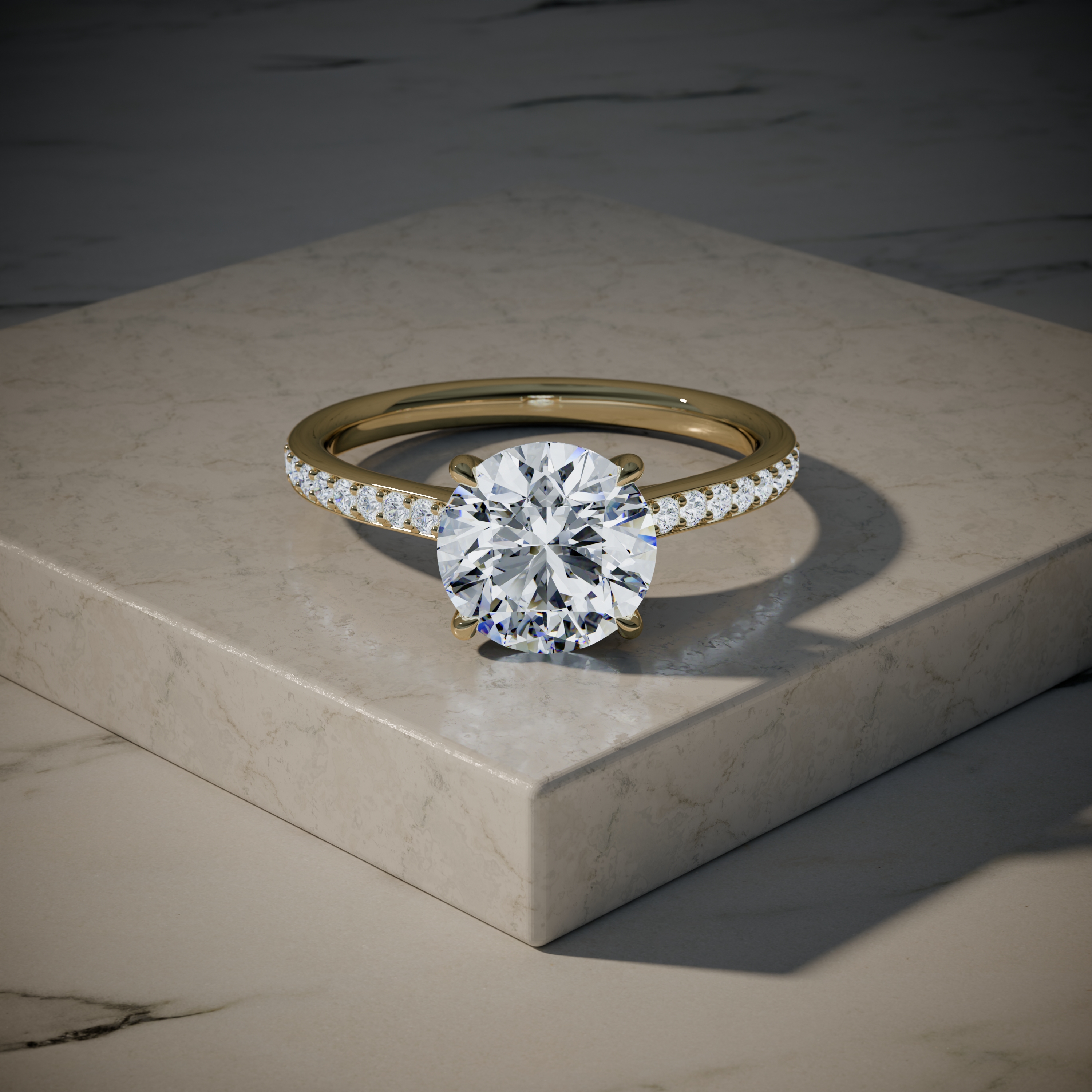
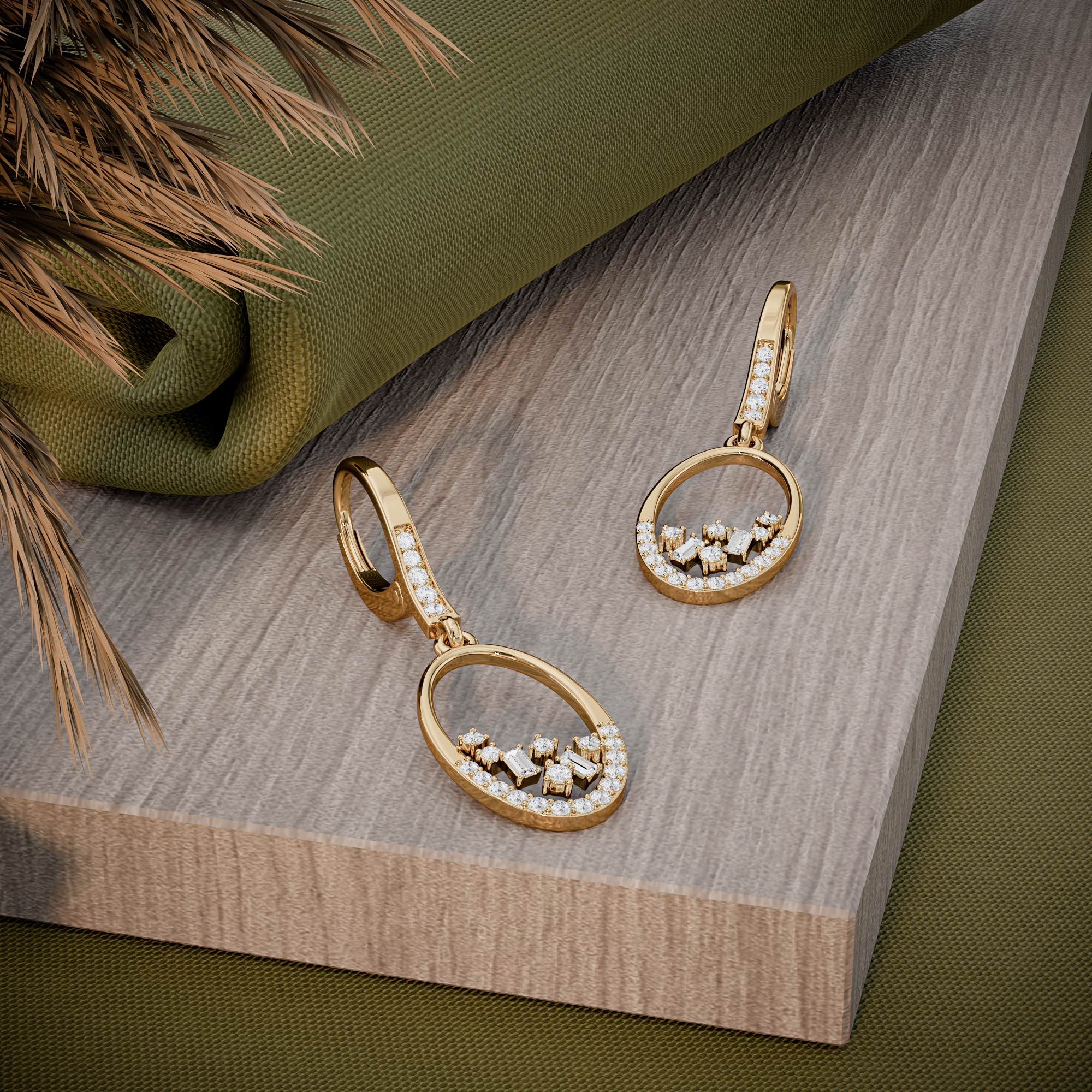
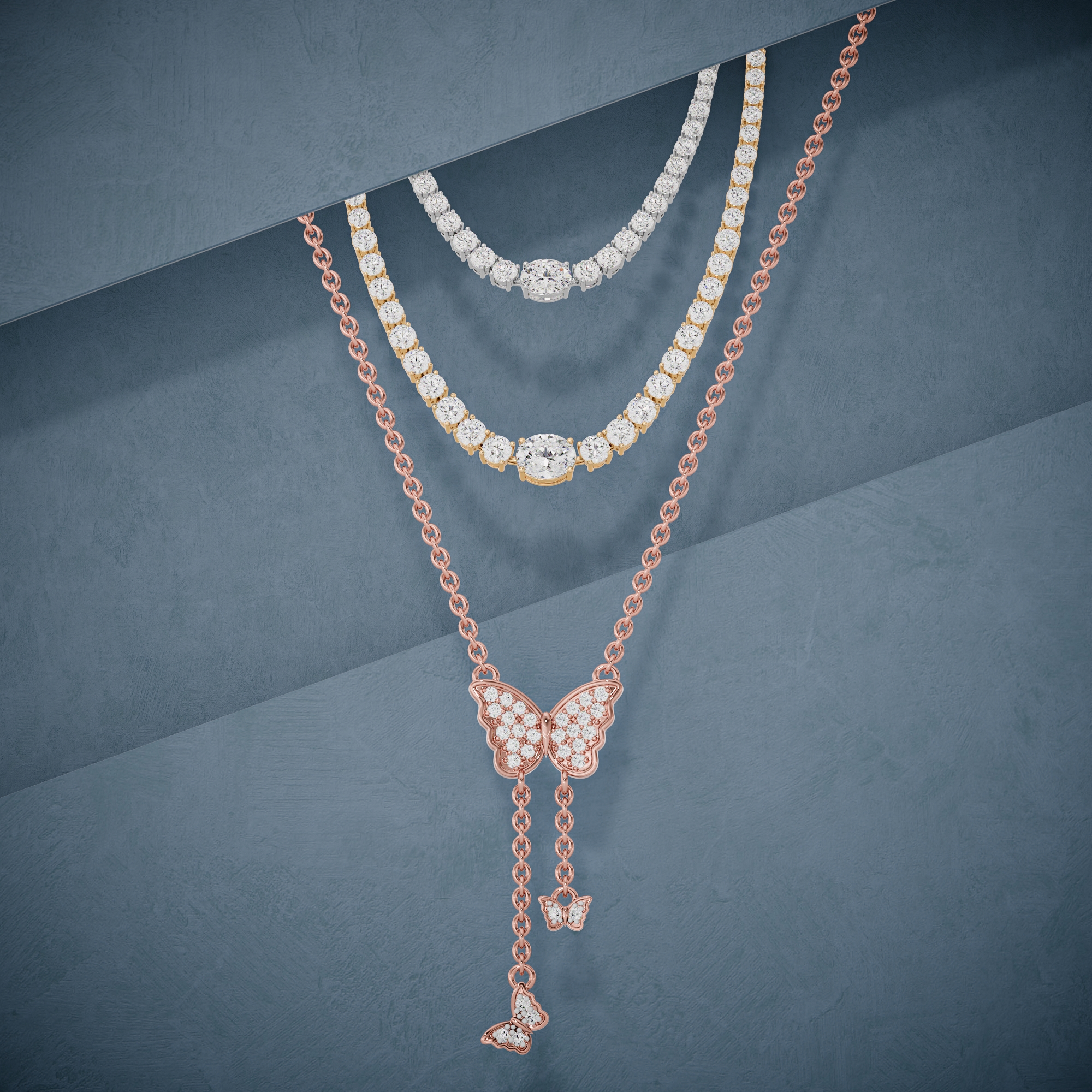
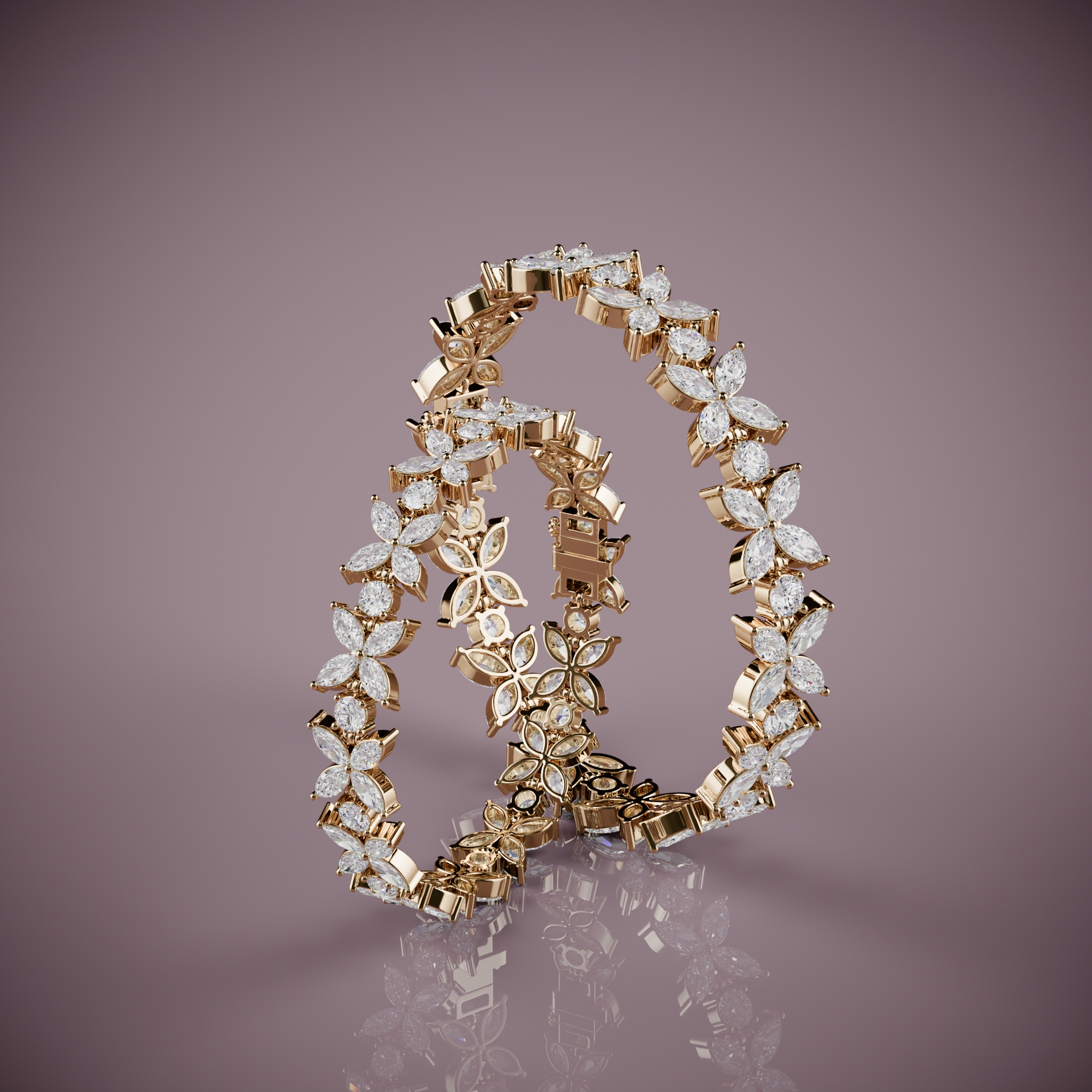
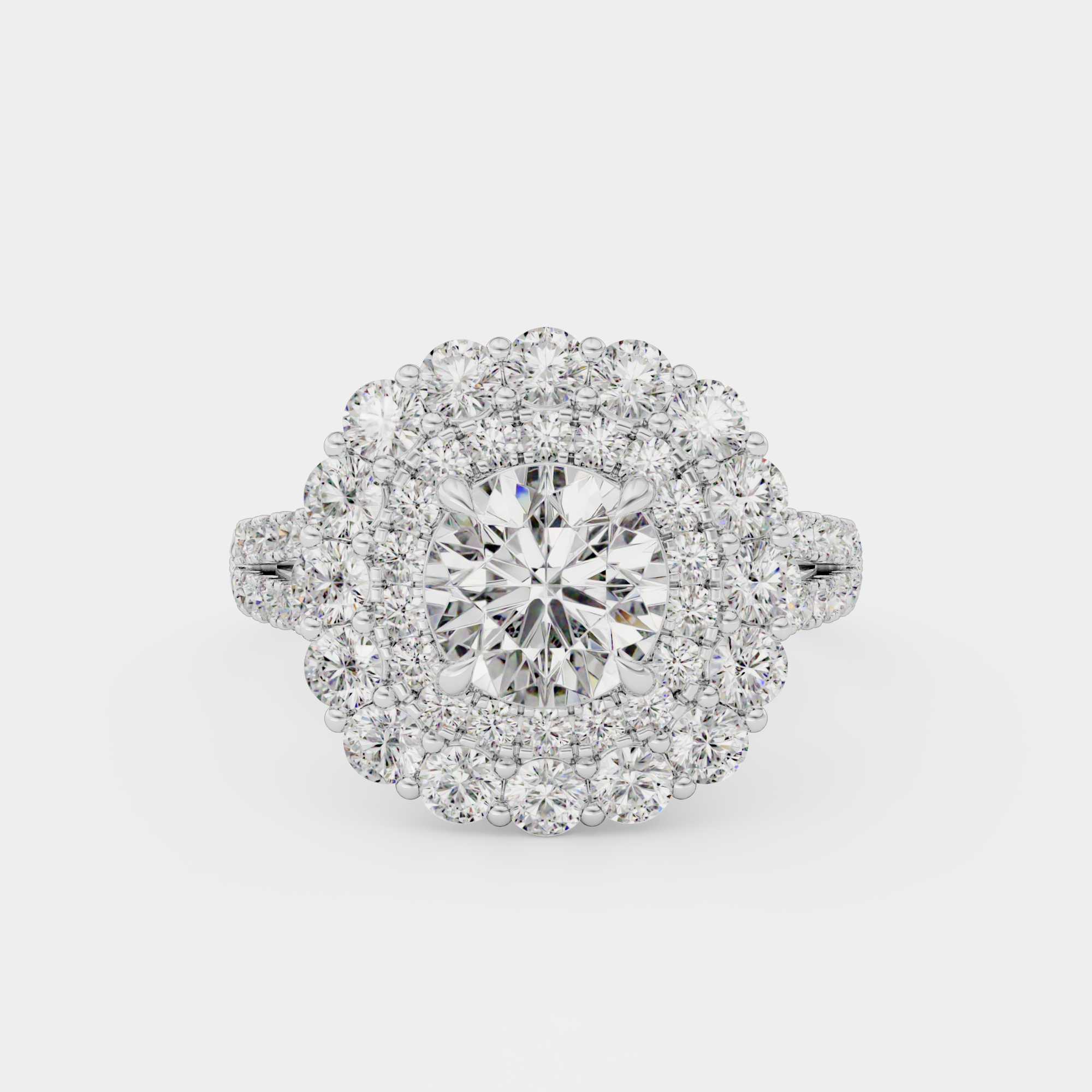
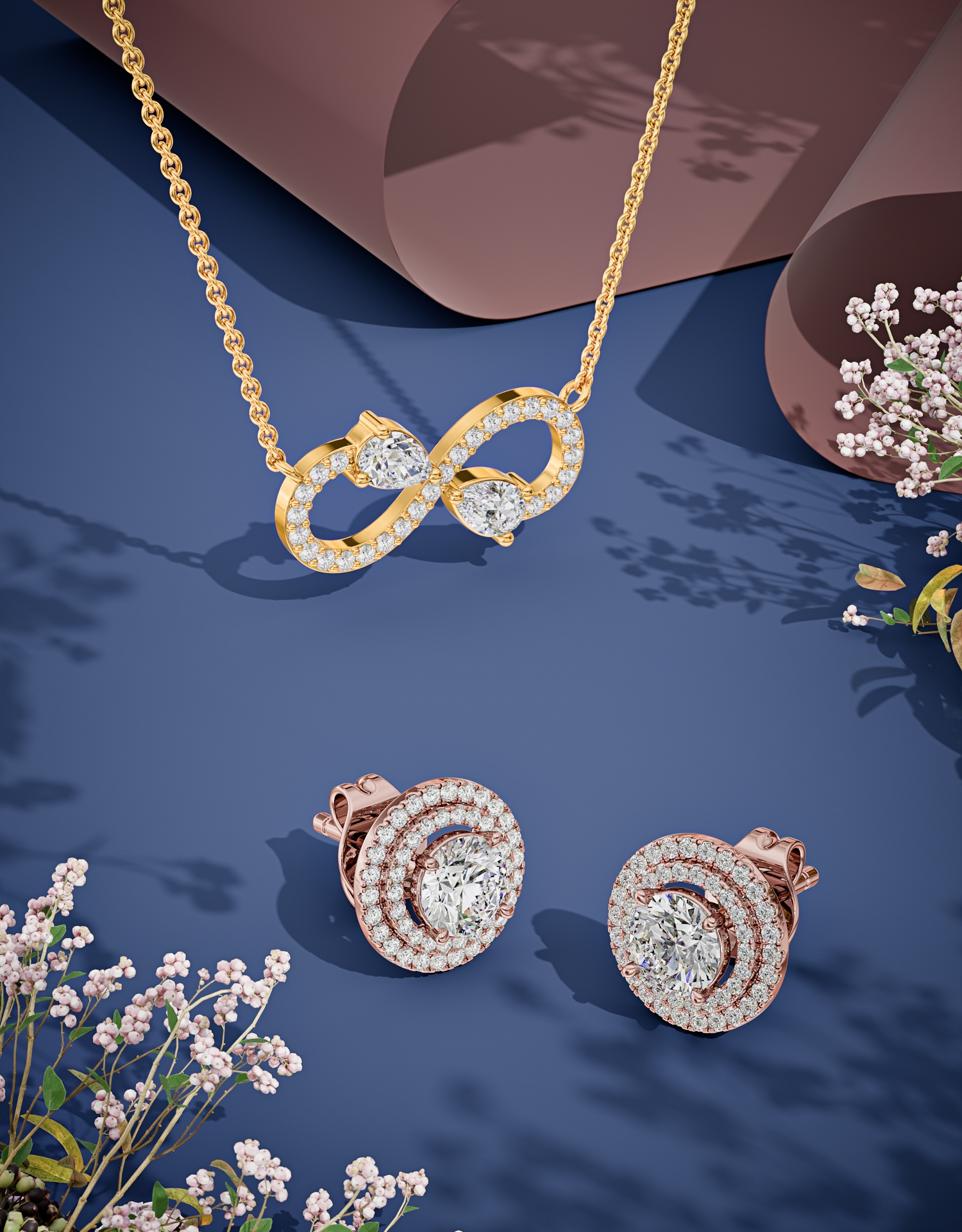
Jewelry is nothing but small edges: prong tips, milgrain beads, pave grains, facet junctions on every stone. Those are the exact features that alias worst, and they are what a customer zooms into.
Sparkle makes it harder again. A tiny very bright highlight against dark metal can flare into a hard-edged white blob under low sampling, and in a 360 video it flickers frame to frame as the piece turns.
Fixing it costs render time, since more samples means more rays traced. It is not an optional setting on jewelry work, which is part of why the 9 HD images and 3 videos per file take the hardware they do.
Questions about Anti-Aliasing
Why do my jewelry renders have jagged edges?
Sampling is too low for the detail in the scene. Prong tips, milgrain, and facet edges need higher anti-aliasing settings than a large simple object would.
Does anti-aliasing make renders slower?
Yes. Every extra sample per pixel is more light to trace. On jewelry the tradeoff is worth it, since fine edges are exactly what buyers zoom in on.